
Import data from previous software
Open Import data from the client menu, in the Connections group (the page is available before financial setup is complete), from financial setup, or from the account index. One file can hold structure, balances, journal entries, and documents, so import is not part of the bookkeeping menu. To import several client files at once, open Import data in the Operations area. An office owner, administrator, or client accounting controller can import structure and manage its mappings; importing journal entries requires import permission, and posting them requires posting permission.
Large account indexes are processed in small batches; the number of customer or vendor cards is not limited to 500. You can drop an index with 10,000 cards without splitting the file yourself. Office-wide migration runs the batches after the migration review. The client-specific review shows the complete index in one scrollable table. Search and filters cover the whole file. Review your choices and approve once; all parts are processed automatically, with progress shown. Keep the page open while it runs. If interrupted, reopen the saved import from Recent imports to review and continue; completed cards are reused. If the initial upload was interrupted, select the original file again. Empty MOVEIN files do not block an accompanying HESHIN index.
Choose the starting point
Link to section: Choose the starting point- Fresh books: choose defaults or copy a completed client during setup. No import is needed.
- Moving from other software: during client creation choose Create client and import structure, or open Import data before completing financial setup. The imported index becomes the starting structure, with its keys. No Office template is added to the index. Later, you can select automatic posting accounts or approve creating the missing accounts from the review. Complete Financial setup after applying the index.
- Books already exist: current cards, sort codes, transaction types, and classifications stay in place. Old cards are linked to current ones or added deliberately.
Drop the export file
Link to section: Drop the export file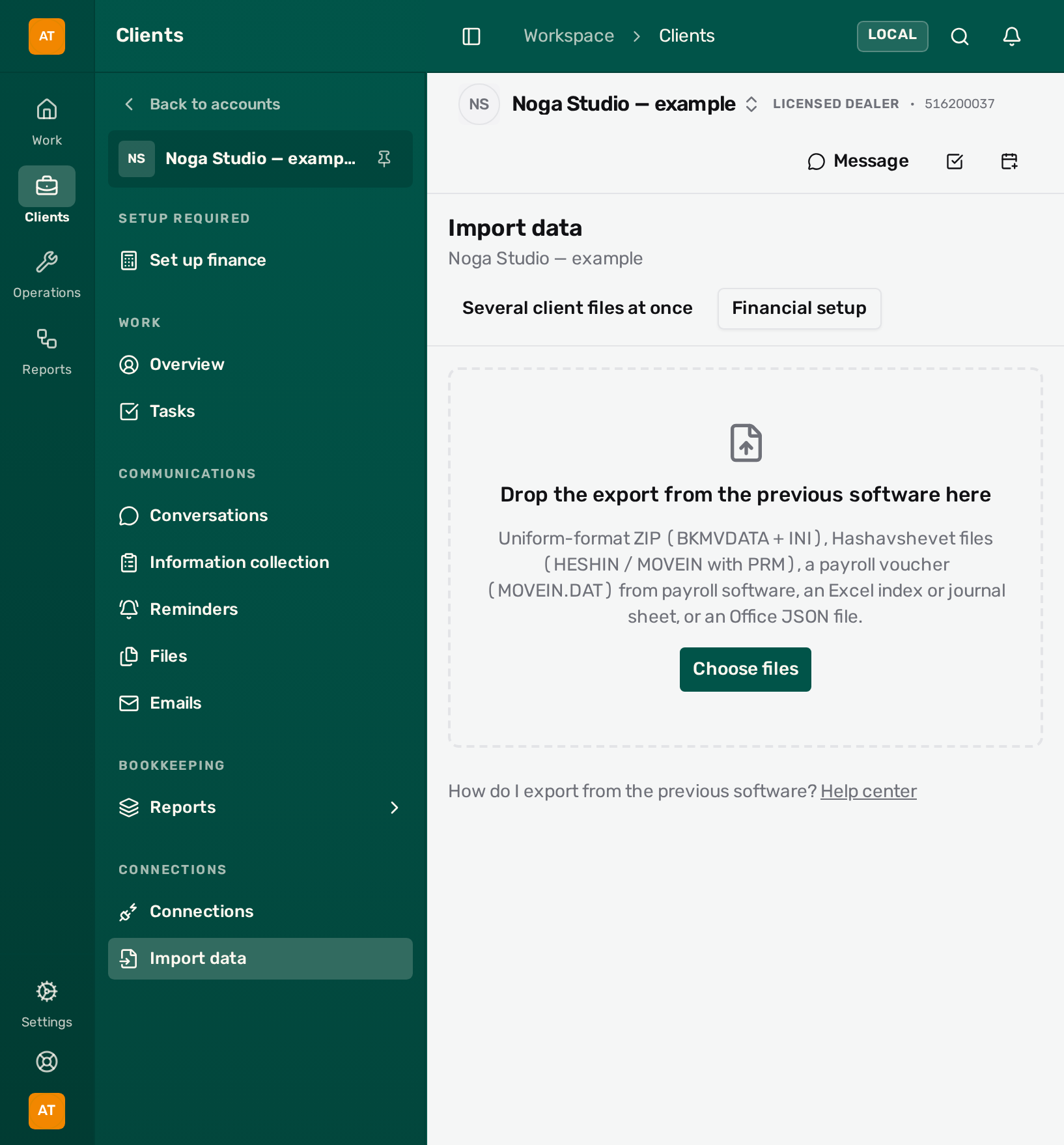 View full size ↗
- Import data in the client menu, in the Connections group.
- The drop zone, or Choose files.
- Several client files at once: office-wide import for many clients.
- Drop the export from the previous software onto the page, or choose Choose files. Office recognizes the file on its own:
- Uniform format (מבנה אחיד): the complete export ZIP containing
INI.TXT, orBKMVDATA.ZIP/BKMVDATA.TXTtogether with its matchingINI.TXT. You can also upload and preview the data file without INI. If INI is missing or does not identify a valid year, check the Bookkeeping year in the original software and select Confirm bookkeeping year before importing. A suggested year comes from transaction dates and must still be confirmed; those dates can differ from the bookkeeping year. The confirmed year is saved with the import for retries and distinguishes entries whose numbers repeat across years. Changing the year requires confirming it again. An index-only file with no journals needs no year confirmation. Every registered Israeli bookkeeping software produces a uniform export. - Hashavshevet:
HESHIN(with its PRM for a custom layout),MOVEIN.DATorMOVEIN.DOCwithMOVEIN.PRM, or a ZIP containing them. If a ZIP holds several movement files, choose one. - Payroll software: the payroll voucher
MOVEIN.DATthat payroll software such as Michpal exports for Hashavshevet, without a PRM. See Import a payroll voucher. - Spreadsheet: an index sheet with
accountKeyandnamecolumns (optionallyrole,sortCode,currency,taxRepCode6111), a journal sheet with entry ID, line ID, date, account key and debit or credit, or a document sheet with a date, an amount and a supplier or customer (such as Morning’s expenses report). Columns that Office cannot recognize can be mapped on screen, and What the file holds reads the sheet as expense documents, income documents or journal entries. - Office JSON: a complete structure file or a journal file exported from Office.
- Uniform format (מבנה אחיד): the complete export ZIP containing
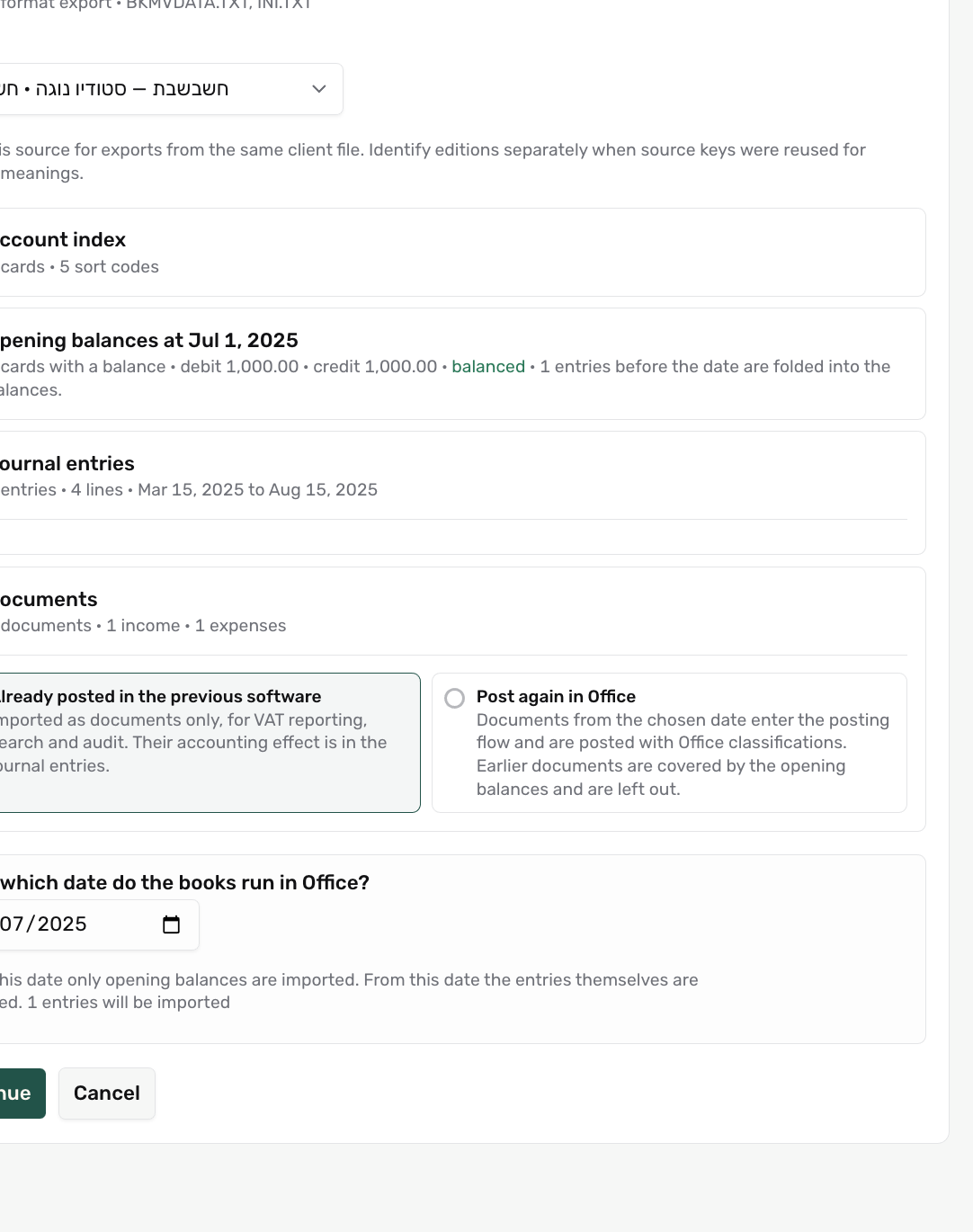
- Read What we found in the file. The source is identified from the file when it can be: the uniform format names the software and the business ID. Reuse an existing source for another export of the same client file, or name a new one. Files without identity, such as spreadsheets, propose the client’s most recent source.
- Tick what to bring in. Account index shows the number of cards and sort codes. Opening balances shows how many cards carry a balance, the debit and credit totals, and whether they balance. Journal entries shows the number of entries, lines, and their date range. Documents shows how many income and expense documents the uniform export or the document sheet carries.
- Choose From which date do the books run in Office? Up to that date only opening balances are imported; from that date the entries themselves are imported. The default is the file’s period start. Moving the date later folds the earlier entries into the balances, so nothing is counted twice.
 View full size ↗
- Source name: Hashavshevet — Noga Studio for another export of the same file.
- The four content types: index, balances, entries, and documents.
- From which date the books run in Office: earlier entries fold into balances.
When an existing source is selected, the entries are checked against the books before anything is previewed: entries already imported from this source are removed and counted, and entries whose content changed since they were imported are kept and flagged for review. The count on the date line shows how many entries will actually be imported. An entry is identified only by its source identifier; entries that merely share a date and totals are ordinary bookkeeping and are imported like any other.
Balances come from the uniform export’s account records (B110) or from a trial balance sheet (מאזן בוחן) with an account key, a name, and either a balance column or debit and credit balance columns. A trial balance is taken as of the chosen date. The date cannot be earlier than the start of the data in the file.
When several rows in the index share one account key, as single-entry exports do when every counterparty sits under one customers card, the summary lists those keys. The default, One card per key, brings the rows in as one card under the name you type; the other rows are left out. Separate cards keeps every row and gives the extra rows numbered keys such as 42000/2, which you can change in the review. The office-wide import uses one card per key.
When opening new books, confirm the bookkeeping method and base currency in the file summary before continuing. Keep Account index selected for new books; balances, journal entries, and documents wait until setup is complete. If the file contains only historical content, finish financial setup first, then reopen the file. This also applies when an earlier import opened the books but financial setup is still incomplete. For existing books, currency comes from the client’s books. If the file states a different base currency, a warning appears before you continue. Uniform exports can include both base-currency and foreign-currency amounts on each movement. Office retains both recorded amounts and shows the foreign amount alongside the base amount in the review and account history. A foreign currency code with a zero foreign amount does not block an ordinary base-currency movement. A nonzero foreign amount must identify its currency; Office does not invent exchange rates or missing counter-entries.
A movements file can be up to 256 MiB, with no limit on the number of lines. The import runs in the background in parts, so the page can be closed while it continues. Hashavshevet posts payroll interfaces, cheque deposits and similar feeds as one-sided movements whose balance is enforced on the batch (מנה) rather than on each movement. A balanced batch of such movements from a uniform export is imported as one journal entry, one per date when every date balances on its own; otherwise the entry carries the batch’s latest date and each earlier line keeps its own date in its description. A batch longer than 500 lines, such as a full day of card receipts and deposits, is split into several entries wherever its running balance returns to zero, so each entry balances on its own. A batch with a stretch of more than 500 lines where the balance never returns to zero stays as one-sided movements for review. Other one-sided or unbalanced entries remain subject to review even when their currency data is complete. Zero-value source lines remain in the original import details without creating ledger movements.
How the index joins the books
Link to section: How the index joins the booksThere is no policy to choose. Every row of the index gets the same treatment, whether the client’s books are empty or already active:
- A definition that was mapped from this source before is pre-selected to the same destination.
- A sort code or expense classification whose name matches exactly one current definition (also when the name differs only in quote marks or is stored reversed by an older export) is pre-selected to it. A transaction type is pre-selected only when its posting recipe equals exactly one current type, line for line.
- A customer or vendor card is matched through its counterparty: a tax ID that belongs to exactly one current counterparty attaches the card to it, and the counterparty’s card in that role and currency is pre-selected; a card in a currency the counterparty has no card for is created on it. Without a tax ID, a new counterparty is proposed; a current counterparty with the same name is suggested for you to pick.
- Any other card that shares its key or its name with a current card waits for your decision, with the suggestion listed first. A card nothing resembles is created.
- A created card keeps its source key. When that key is already used in the client, or is not a valid key, the review shows the key it gets instead, taken from the sort code’s numbering, before you approve.
Review the mapping
Link to section: Review the mappingThe review offers solutions for recognized source problems. Likely malformed duplicate cards shows matching valid cards and source line numbers. The bulk Exclude these copies action is offered only when the copy has zero balances, no movement references in the checked export, and one matching valid card that is being retained. Expand Show matches and source lines to inspect the evidence. The original fields remain intact; exclusion is a review choice, applied only when you approve the import. Older saved drafts need the original file selected again to obtain this evidence.
For duplicate classification names, the review shows the source cards sharing the name and proposes distinct names using their keys. Use distinct names preserves separate classifications and their posting settings. If they should share a classification, use Inspect / choose mapping to check the details and link to an existing classification instead. Matching names alone never merge accounting treatments.
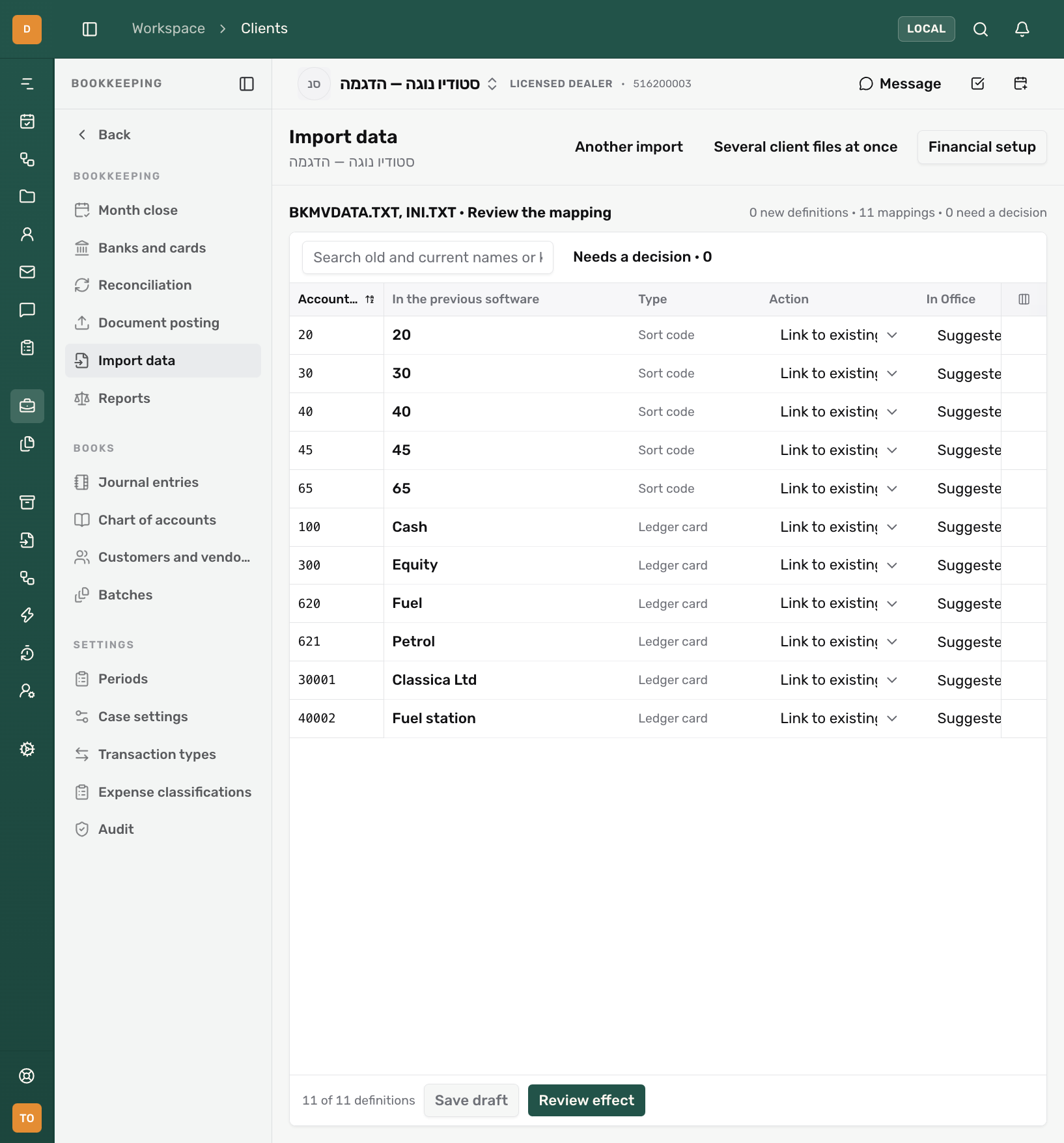
Each row shows the old key and name, the definition kind, an action, and the destination in Office. On a repeat file, definitions that were never mapped before carry a new badge, and New since last file shows only those; everything mapped before keeps its saved destination, with a warning when the source renamed it. Actions are Link to existing, New definition, Do not import, and Not decided. A row that is not decided prevents applying the import. Use Needs a decision to see only those rows, and Accept suggestions to take all unique matches at once. The kind and action filters narrow the table further, for example to ledger cards that are not decided; Set shown rows to then gives every row in the filtered table the same action in one step, such as New definition for all of them. Choosing Link to existing fills in a card only when exactly one current card has the same key or the same name; any other row stays open until you pick its destination. The destination list starts with cards marked Suggested: same key, same name, overlapping name, then same role. An overlapping name or a shared role is only a hint, so check such a card before choosing it. Search finds old and current names or keys.
The ledger-card table also shows Main account (the accounting role) and Sort code, including the settings chosen for a new card. For a New definition, use the dropdowns directly in the table to change these settings. The same selections appear in the row details, where field labels stay visible. In the sort-code dropdown, choose the previous-software option to return to the source mapping. Rows linked to existing cards display their current settings without changing them. Long keys are shortened with an ellipsis; hover to read the full key or drag the column edge to widen it.
 View full size ↗
- 11 mappings: a repeat file on books that already exist.
- Action and In Office: link old fuel keys 620 and 621 to the current cards.
- Review effect: when every row is ready.
For example, link old fuel keys 620 and 621 to current fuel card 7310. Both then post to one current card. Linking preserves the destination’s settings; a new definition takes the source details.
Dependencies are checked: a new card needs its sort code, a new transaction type needs its cards, and a new classification needs its transaction type and account variables. The issue appears beside the affected row.
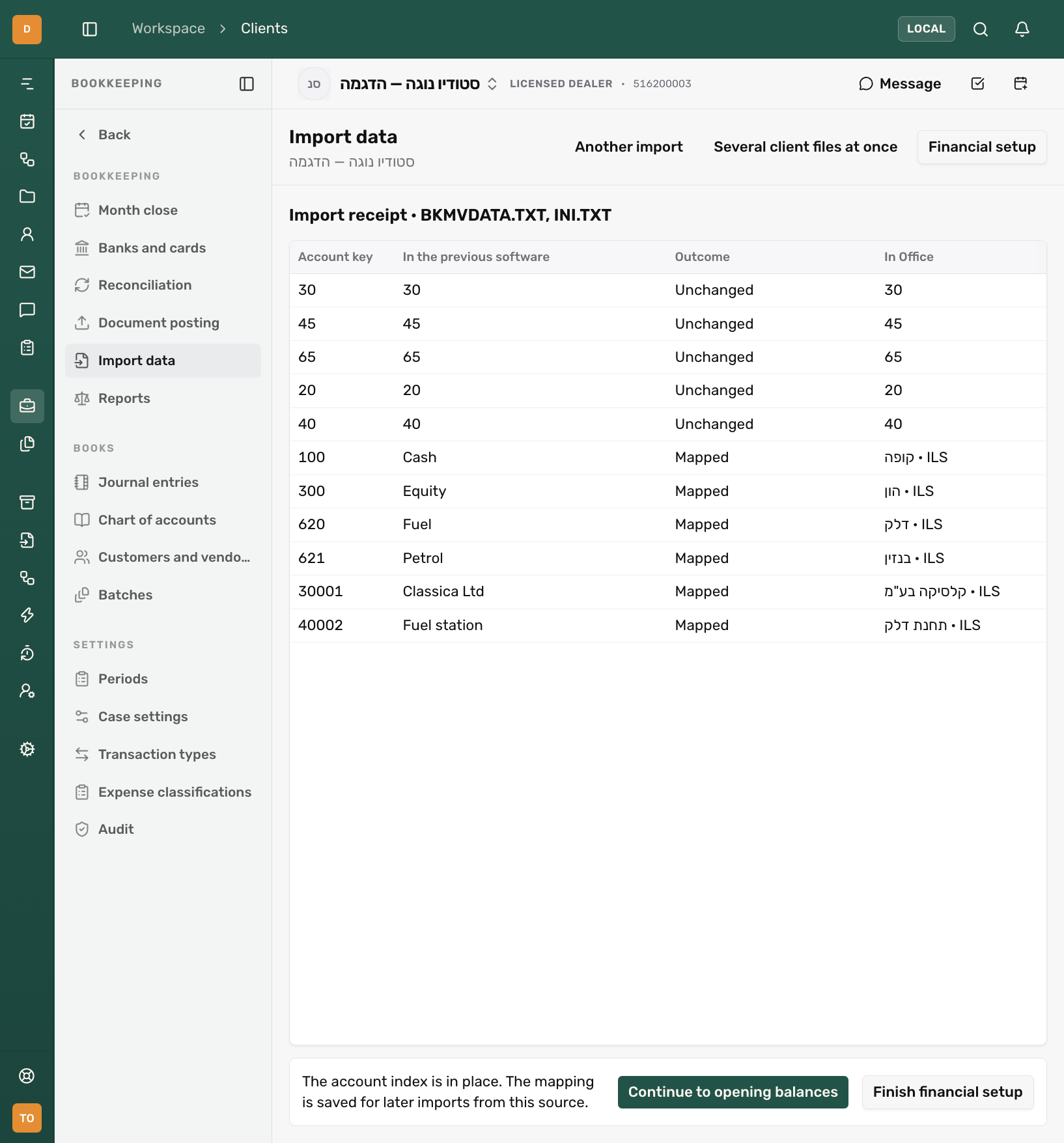
Save draft keeps your decisions; the draft appears under Recent imports and can be opened later. When ready, choose Review effect, inspect the complete list, then confirm. The receipt lists each saved mapping, new definition, or exclusion. When the file opens new books, choose Finish financial setup from the receipt. Setup opens inside the import page on the imported chart. Under Automatic posting accounts, you can select existing accounts for VAT, opening balances and differences. You can also skip these selections, review the proposed new accounts and choose Continue and create missing accounts. Accounts already selected are kept. To choose accounts from your previous software, select Back to choose existing accounts. Complete the remaining requirements; the import then continues to the selected balances, entries, or documents. The mapping is saved to the source and reused by later imports and by document imports.
 View full size ↗
- Outcome: created, mapped, or unchanged.
- Continue to opening balances after the index is in place.
Correct reversed Hebrew names
Link to section: Correct reversed Hebrew namesSome older exports store Hebrew backwards, sometimes in the old DOS encoding; both are read correctly. A reversed name that matches a current card is linked and corrected up front. For the rest, use Try suggested corrections for names that look reversed, or Reverse all Hebrew names for a whole file. Correct a single row from its details. Original text and keys are retained, and existing destination names are unchanged.
Customer and vendor cards in the index carry a Counterparty column. It shows whether the card joins an existing counterparty or creates a new one; change it in the row or in the row details, where you can also create a card on an existing counterparty. A new counterparty carries the tax ID, address, phone, and email the source keeps. A counterparty has one primary card per role and currency: a card created in a currency that already has a primary card is added as a secondary card, and when two rows of the file compete for the same counterparty, role, and currency, you mark which one is primary. A uniform export names the card’s role through its trial-balance description (for example לקוחות or ספקים); when that description is generic, the role is read from the card name itself (for example מע“מ עסקאות or משכורות) and marked as a proposal. Cards without a recognizable role are created as general cards with a warning and can be given a role in the row details.
Import opening balances
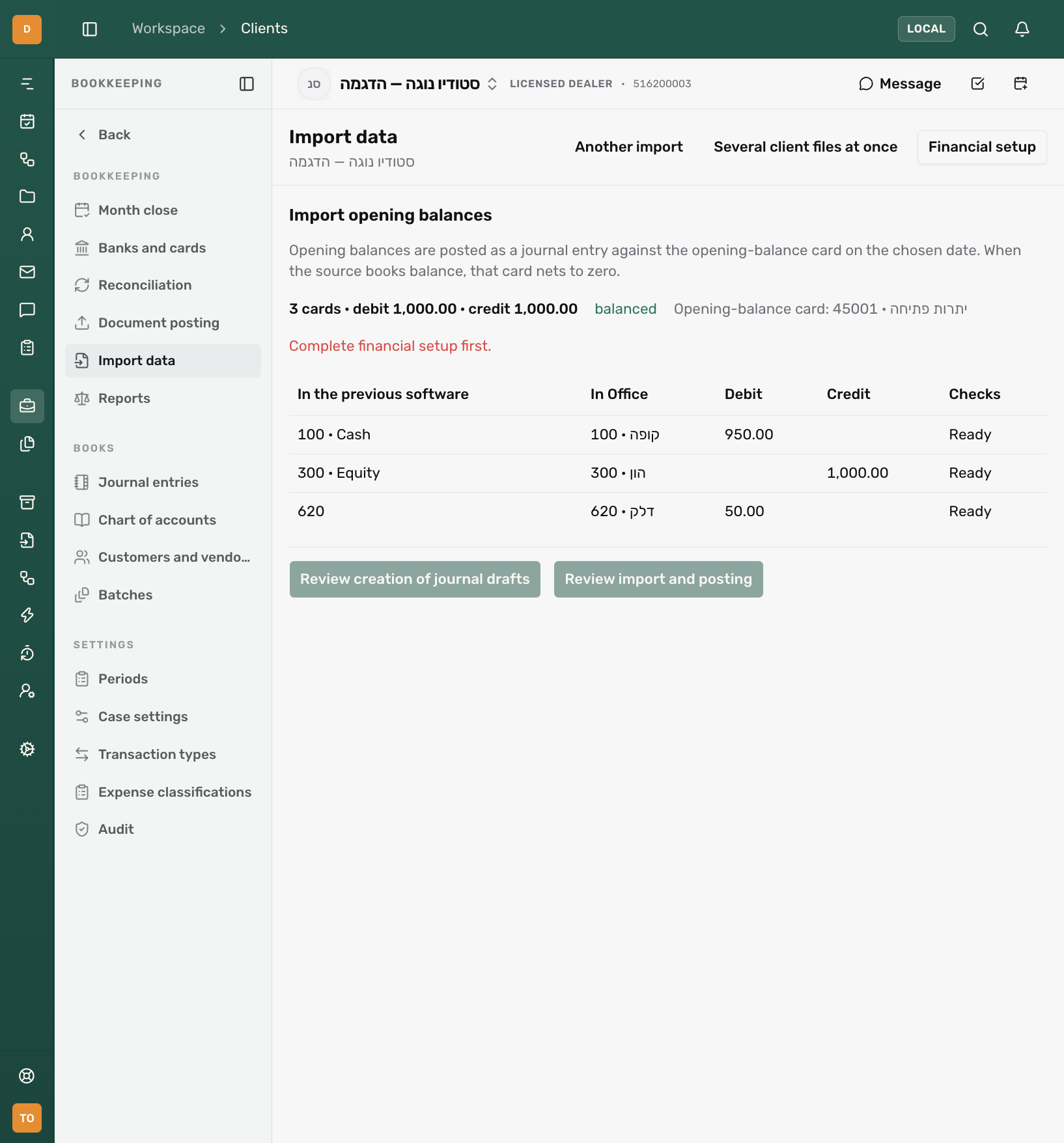
Link to section: Import opening balancesAfter the index is applied, choose Continue to opening balances. The review lists each balance with its destination card, the debit and credit totals, and the opening-balance card that receives the counter line. When the source books balance, that card nets to zero; otherwise the difference stays there and a warning says so. Financial setup must be complete and the client must have an opening-balance card.
 View full size ↗
- Complete financial setup first: posting waits until setup is finished.
- Each balance with its destination card, debit, credit, and Ready status.
Confirm Review creation of journal drafts or Review import and posting. Balances are posted on the chosen date as entries of up to 100 lines. Repeating the same balances returns the existing entries; a second opening on another date for the same source is refused.
Import journal entries
Link to section: Import journal entriesAfter the balances, choose Continue to reach the entries from the chosen date, or drop a movements file later. The review lists every entry with its original lines and their destinations in Office. The summary counts ready, blocked, and already-imported entries.
- The review uses the available workspace width. Search, account, and status stay above the list; Filter opens inclusion, currency, and date controls. The info icon opens the import explanation. Selected totals and approval controls stay below the scrolling list.
- Every included entry must balance, every account key must have a saved mapping on the chosen source, and its period must be open. Financial setup must be complete before entries can be imported.
- The complete file appears in one scrollable journal list. Search descriptions and references, or filter by account, date range, base/foreign currency, validation status, and inclusion. Validation runs automatically in the background; entries awaiting validation remain marked until checked. Status and destination-name results fill in as validation completes. Include all matches, Exclude all matches, and exclusion of blocked entries apply to every matching entry, including entries outside the visible area. The selected totals cover the whole file, independent of filters. Wait for all entries to be checked, then approve once. If validation fails, use Recheck all entries. Use it again after changing books settings elsewhere; final import revalidates the entries.
- When the journal records in a file cannot be read, the issues are shown with the findings and the rest of the file (index, balances, documents) can still be imported.
- MOVEIN has no entry identifiers, so each record is identified by its own content. The same record in a later export is recognized as already imported; identical records within one export are told apart by their order.
- Account keys that have no card yet are listed above the table, each with the number of lines that use it. Choose a card once per key: all its lines update together, and the mapping is saved on the source so later files use the same destination. The same identifier with different content is reported and not imported.
- Bulk actions and the header checkbox apply to all filtered matches, including entries outside the visible area. Individual selections are preserved when you scroll or change filters.
- A MOVEIN slot that names an account with a zero amount, typically the empty VAT slot, is not a line.
- Single-entry books (הנהלת חשבונות חד־צידית) record income and expenses without a counter account, so their entries carry only one side. The file summary counts them and explains that counter accounts are handled in the journal review. You can continue without choosing accounts in the summary. Previously saved income and expense choices from the same source appear in the review and can be changed there. Each completed entry gets a balancing line, marked as such in the review and on the entry. Entries left without a card still need a choice before import.
- Choose counter accounts in the journal review: Choose Selected income entries, Selected expense entries, or All selected entries, search for a counter account, then choose Apply to … entries. This affects only checked entries in the current filtered results that need a balancing line, replacing any previous counter-account choice for those entries. You can also choose a different counter account on each entry. If the account does not exist yet, choose New card beside the picker, fill in its details, and create it. If its sort group is missing, choose New sort code in the card dialog to create and select the group without losing the card details. In the bulk controls, the new card becomes selected and you can apply it to the entries; when created from an entry, it is assigned to that entry immediately. Income suggests a customer card and expenses suggest a supplier card; you can change this in the creation dialog. The balancing line appears in the table and validation runs again. Review its account and amount before confirming the import. Already imported entries stay unchanged. When choosing income or expense entries, you can tick Use this account for income in future files from this source (or expenses) before applying. This saves the choice for that direction in later files; other entries in the current file keep their choices. Individual assignments do not change saved defaults. Closed periods, unavailable accounts, and other issues still need attention.
- A Hashavshevet-interface zip that carries a uniform export inside it, as Ramplus exports do, is read as the uniform export. The recognized Ramplus MOVEIN/PRM dialect is also supported: amounts are read as agorot and the main/VAT account columns are handled separately. Prefer the uniform export when both are present because it preserves company identity and fuller references. Re-importing the matching Ramplus movements through the other format reuses their saved identities.
Confirm Review creation of journal drafts or Review import and posting. The import then runs in the background, batch by batch, and you can move on to the documents or leave the page. Movement imports on the import page shows each run with its progress and outcome: how many entries were imported, were already in, were left out, and were skipped. An entry that fails a check at import time, for example a key that still has no card or a locked period, is skipped and listed with the reason, naming the failing line and the card it pointed at; the rest of the file is not held back. After fixing the cause, Retry skipped imports just the entries in the list. If the list is marked incomplete because there are too many errors or detailed failing lines, fix the causes and drop the original file again to retry all skipped entries. Entries already imported are recognized and left unchanged. Original import details on the entry retains the source file, old keys, descriptions, and amounts.
Import a payroll voucher
Link to section: Import a payroll voucherPayroll software (Michpal, for example) exports each month’s payroll voucher (פקודת שכר) for Hashavshevet as a MOVEIN.DAT, without a PRM file. Drop it on the client’s Import data page. Office recognizes it by its layout, not by its file name, and shows Payroll voucher from payroll software. Hashavshevet’s own MOVEIN file is still read as a Hashavshevet file.
- Each line of the file is a payroll item: pay, travel, National Insurance, pension contributions, deductions, or an employee’s net pay. Amounts are read in agorot, and a minus sign reverses the sides. The payroll software’s header line and closing line of nines are skipped.
- An item the payroll software gave a card posts to that card, on the debit or credit side it appears in. An item without a card (usually the liabilities: National Insurance owed, funds, an employee’s net pay) uses its name as the key, which you map once. The file does not state the side of such an item, so it posts as a credit. A negative item, such as the agorot rounding, moves to the debit side only when that is what balances the voucher.
- The whole file is posted as one journal entry on its value date, named פקודת שכר and the month. A voucher that does not balance is reported as soon as the file is read. A file of expenses alone, without the credit side, posts like a one-sided entry: you choose its counter card in the journal review. A voucher longer than 100 lines, for example when each employee has a net pay line of its own, is split into several entries that each balance through a transit card, מעבר שכר (payroll transit). You map it once, and together the entries leave it at zero.
- The payroll voucher keeps a source of its own, ממשק שכר (payroll interface), apart from the previous software’s source. The payroll software is set up with the books’ card numbers, so on the first import each key that matches an existing card’s number is linked to that card automatically; no card is ever created. If a key is still left without a card, for example an employee the file names without a card number, the entry is skipped and the journal review opens by itself with the keys to map (later, Review the skipped entries on the import page reopens it). Pick a card for each key and confirm Import and post. The mappings are saved, and the following months’ files post without stopping. A new employee appears as a new key to map.
- The same file imported again is recognized as already in the books and is not posted twice. A corrected file for the same month is a new entry; if the earlier one was already posted, correct it before importing the corrected file.
- A line outside the layout, without a valid date, with an amount that is not digits, or with neither a card nor an item name is listed with its line number. Export the payroll voucher again from the payroll software.
Import documents
Link to section: Import documentsWhen the export carries documents, choose what they are:
- Already posted in the previous software: the default when journal entries are imported in the same batch. Documents are imported as evidence only, for VAT reporting, search and audit; they never enter the posting queue.
- Post again in Office: documents from the chosen date enter the normal posting flow with Office classifications. Earlier documents are covered by the opening balances and are skipped.
Income and expense documents are imported one direction at a time, and the step runs on its own: each direction is validated and imported as soon as it can be, and its receipt stays listed while the next one runs. Each document’s counterparty key must be mapped to a customer or vendor card from this source; the review lists keys that are not, and importing the account index from the same source resolves them. Cancelled documents and record types that are not documents (orders, delivery notes, inventory) are skipped with a reason. Re-importing the same documents leaves them unchanged.
With Post in Office chosen, Post the documents right away is ticked by default: each document gets its journal entry as soon as it is imported, incomes by their document type and expenses by their classification. An expense without a classification, or a document that cannot be posted (for example in a locked period), stays a draft in document posting, and the receipt at the end of the import says how many were posted and how many stayed drafts. A tax invoice/receipt is posted together with the payment it states. Untick it to send the documents to document posting as drafts.
Document sheets
Link to section: Document sheetsA sheet whose rows are documents (a date, an amount and a supplier or customer) is read as documents rather than entries. A supplier column makes it expense documents and a customer column income documents; change it under What the file holds. Check the column mapping in the table. Show lists every row as it will be imported; rows that are not documents (such as a totals row) are listed with the reason and left out.
- Suppliers and customers: found by tax ID, then by name, and created with a supplier or customer card when they do not exist.
- Expense classifications: each classification in the file is listed with its number of documents. One that has an Office expense classification of the same name is preselected; choose one for the rest, or leave it and its documents stay drafts. The choice is saved on the source and used by later imports from it.
- Morning (Green Invoice): the expenses report is recognized by its column names, even when their order changes. The classification is read from תיאור חשבון הוצאה; the account key, 6111 code and sort code are the same on every row of this report and are not mapped. The recognized amount and recognized VAT are kept on the document. If Morning changes a column, its mapping shows empty and can be chosen in the table.
A direction with no eligible rows is passed over without a job. The step waits only when validation leaves zero documents ready or the import fails: review the displayed reasons, then choose Continue to expense import or Finish import; those documents remain unimported.
When source mappings are missing, the document review shows each source name, its affected-row count, and a searchable classification or counterparty picker. Choose the correct destination, or explicitly leave that group of documents out. Excluded rows can be restored before import. The management links open a new tab so the review stays in place. Continue without importing this step leaves all documents in the current step unimported. Known VAT settlement and owner-clearing cards are not reconstructed as expense invoices.
What the movements add
Link to section: What the movements addA uniform export that carries journal entries says more than its index does, and the import reads it:
- Transaction types and expense classifications. Recognized expense cards used as the main line of a movement become expense classifications, on a purchase transaction type whose VAT weight matches the VAT observed against that card: full recovery, two thirds for vehicles, none for salaries. The type’s VAT line points at the file’s input-VAT card. They appear in the mapping review as new definitions, with a summary such as “3 transaction types · 7 expense classifications read off the movements”, and you can link, rename or exclude them like any other row.
- Documents of a single-entry book. When the book records income and expenses as one-sided movements and the export carries no document records, each such movement is read as a document: net from the main card, VAT from the VAT card, the reference as the document number, and the expense card’s classification. A supported movement balanced by a customer or supplier card names that card as the party. These documents are imported as evidence only, since the journal entries carry their accounting effect. Explicit document records take precedence. When they are absent, only supported income/expense movement shapes are reconstructed; a bank transfer or VAT-only movement is not turned into an invoice.
Import several client files at once
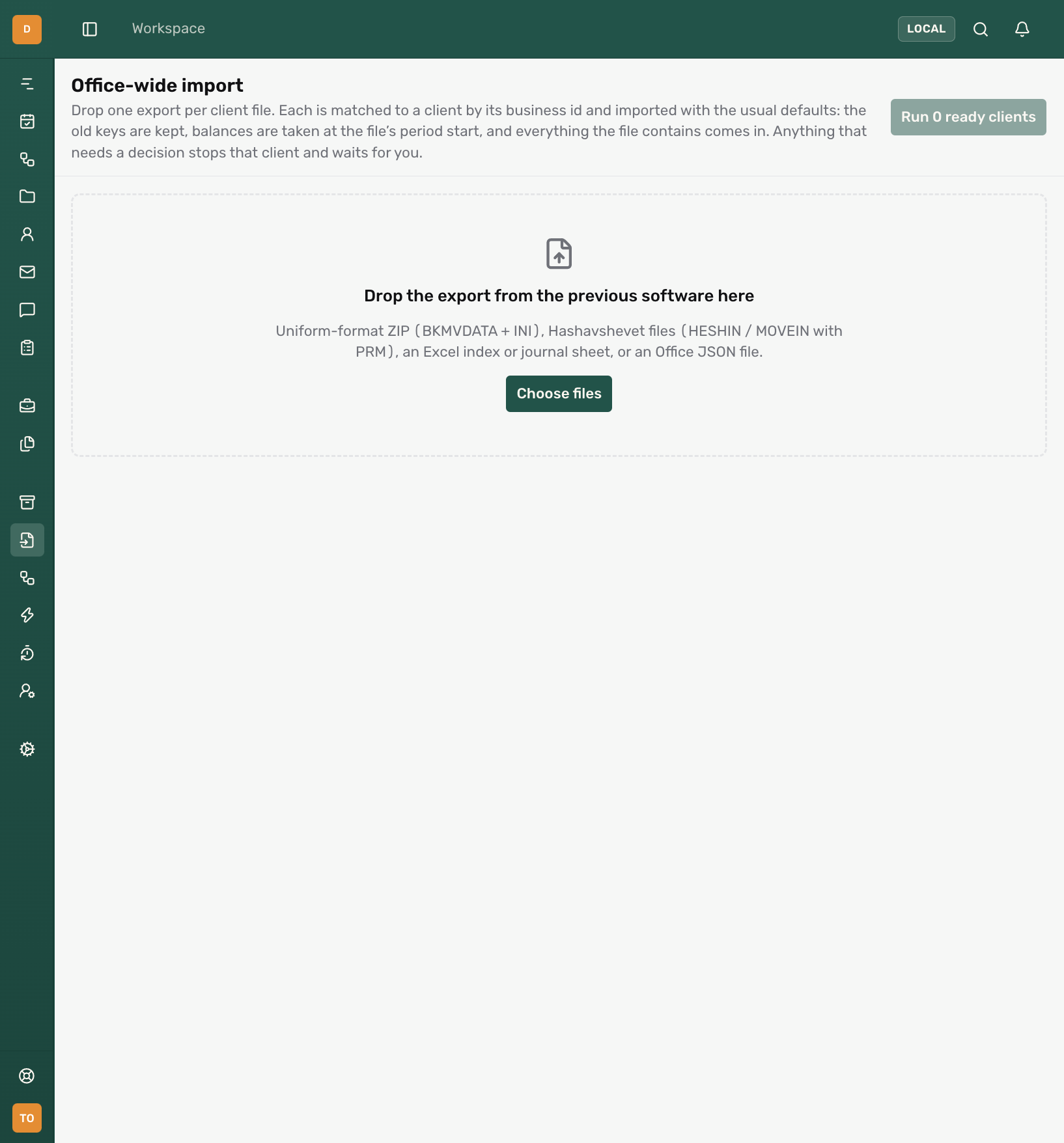
Link to section: Import several client files at onceSeveral client files at once (also available on the office-wide import page) accepts one ZIP per client, or a set of loose MOVEIN/HESHIN files for one client.
- Drop the exports. Business IDs match existing clients. When a uniform export includes a name, business ID and bookkeeping mode, a new client is proposed automatically; review its entity type before approval. Loose files without a business identity need a client selection or New client. For a uniform file missing a valid INI year, confirm its Bookkeeping year in the queue before including it in the import review.
- Choose Run ready clients to open Review migration. Inspect the actual account rows, proposed roles and tax recovery, transaction types, classifications, historical incomes/expenses and journal lines. The review shows the source’s declared bookkeeping mode and how many entries have only one side. Those entries receive the displayed income/expense counter cards; saved counter-card mappings are reused.
- Leave the SmartBill option selected to create or reuse the linked company and copy classifications, customers, vendors and manual history. A created card takes the Form 6111 line from the file; when the file has none, the line the office gives cards of the same name in other clients, else the line the card’s name points at (such as refreshments, mobile phone, or fuel with a vehicle number), and only failing those the default for its role. All of it is shown and editable in the review, with a warning saying where the line came from, and an expense card left on other expenses (3690) is flagged for a look. When the name points at more than one line (“shipping and travel”), the first one named is given and a small +1 on the line marks the others, offered at the top of its list. An expense name numbered right next to the income cards (outside work, between the income cards and the expenses) gets no role and is flagged, since it may be income: pick its role, or leave it as a general card and fix it later. Cards left without a line stay unassigned. This step sends no client invitation.
- Choose Approve and import. Keep the page open while it coordinates the stages. Each client’s outcome appears under Previous runs. A client needing a decision pauses while the other files continue. Continue opens its detailed import page under the same file import and source. The source stays fixed while continuing; choose Another import to start a separate file operation. A failed run can be retried; after leaving the session, drop the same files again to restore the run.
New clients are created without a default chart. After the index is applied, a run pauses if financial setup is incomplete. Open the client’s setup, review the imported chart, select automatic posting accounts or create the missing ones from the review, and finish setup before retrying the run. Completed stages are reused. Existing client settings are retained. The default cutover is the file’s balance date, period start or first movement date. Historical documents whose journal entries are imported remain evidence and do not post again. Journal reconstructions do not include original invoice files or prove payment. VAT-only entries and movements that cannot safely be identified as income or expense remain journals. SmartBill history is copied separately from journal posting; a SmartBill failure leaves the completed Office stages intact, and retrying reuses completed records.
 View full size ↗
- Office-wide import: one export per client file, matched by business ID.
- Run ready clients: enabled only after files are matched.
- Drop a folder of ZIP files here, or choose files.
Roles the office settled on for a source card in one client, such as which card is input VAT, are proposed in other clients’ files from the same software for a card with the same key and the same name, marked with a warning so they stay visible. The same key under a different name gets no proposal, because many programs number their cards afresh for each client.
Without a shared key too, a card whose name matches the office’s cards in other clients, from any software, gets the role most of them have and the Form 6111 line most of them carry. Other expenses (3690) left on a card as the default is not the office’s decision and is not proposed. What you correct on a card after the import is used by the next import.
Use source classifications in document imports
Link to section: Use source classifications in document importsIn the document import wizard, select the source to apply its saved classification mappings. Resolve missing mappings in Import data first. Documents identifying a counterparty must also provide its original account key, mapped to an active primary vendor or customer card in the document currency.
Correcting a file import
Link to section: Correcting a file importOn the data import page, choose Review correction beside an import. Posted entries are never deleted: corrections create linked reversals and preserve original entries, files and audit evidence. An older import can be reviewed without cancelling newer imports.
- Enter a Correction reason. Use each record’s original date, or choose another reversal date in an open period.
- Optionally request a review of archiving unused cards created by this import. Existing cards, shared settings and source evidence remain.
- Choose Stop processing and prepare review. This stops further import processing but does not change applied records. To continue a stopped import, start a new import of the file; duplicate checks remain in place.
- Review actual records, amounts, dates and proposed actions. Expand journals to inspect their lines and load more records as needed.
- Choose the complete proposed set or selected complete records, then confirm the displayed correction count. Individual selection supports up to 500 records; the complete import is processed in the background.
A single debit or credit line cannot be selected. Opening balances must be corrected as a complete set. Exports containing documents and movements without reliable individual links require the complete financial set to be corrected together.
Erroneously imported documents can be excluded from reports only on their original date in an open, unfiled period. The document and source remain: this does not issue a credit note or cancel the document in the source system. Documents with local postings, external synchronization, payments, reconciliation or filed reporting need the corresponding accounting review. Blockers are shown before execution. Never delete a dependency to force a correction.
Cards needed by records or required settings stay active. If optional archiving is blocked, prepare another review without archiving or select only eligible records.
Results show completed corrections and retained or blocked records. If records change during execution, correction stops and completed work remains. Choose Prepare a new review to review remaining work. Repeated confirmation does not create duplicate reversals. An ordinary re-upload does not automatically reinstate corrected records.
Open Correction history to revisit earlier reviews and their outcomes. After a journal-only correction completes, Review replacement drafts prepares copies linked to the corrected originals. Review their exact lines and dates before confirming, then edit and post the drafts in Journal entries. Creating these drafts has no ledger effect. The original import receipt stays deduplicated, and repeated requests reuse the existing replacement. Mixed document/movement replacements require the document workflow.
Posting reversals requires the corresponding accounting permission; archiving also requires settings permission. Imports affected by the old rollback remain labelled as legacy history for support review; deletion cannot resume.
When review stops the import
Link to section: When review stops the importFor HESHIN, the record-length header is detected automatically. The matching PRM may declare a width, use zero, or start directly with field positions. When no width is declared, all data rows must have the same width and the fields must fit inside it. Upload the original DAT and PRM together; no manual header editing is needed.
MOVEIN imports keep the recorded shekel postings in ILS and preserve separate foreign debit and credit amounts alongside them. No exchange rate is recalculated. Standard currency codes and the symbols $ (USD), € (EUR), and £ (GBP) are recognized. A nonzero foreign amount with a missing or unrecognized currency code requires correction. This import currently requires books whose base currency is ILS.
For MOVEIN, an incorrect record length means the data and layout do not agree; include the matching PRM. Unused debit or credit slots containing numeric zero are accepted, and the recognized opening marker is skipped when it appears as the first row of a standard MOVEIN.DAT file. A nonzero amount without its account indicates incompatible field positions; export the data and PRM together again. A uniform file with only account definitions offers the index and no journal entries; obtain an export with B100 records or the software’s MOVEIN file for movements.
Resolve the row’s displayed issue, or exclude that definition and any dependent definitions. If a destination or mapping changed after preview, review again. Re-dropping unchanged definitions reuses their saved decisions; changed source definitions require a new decision. Continue to financial setup when an initial index still has missing requirements.
The document preview names the current step explicitly: income first, then expenses when both exist. It shows the full list of records ready to import and separates records belonging to the other direction, cancelled documents, and documents before the selected start date. Records that cannot confidently be identified as documents appear in a separate review group; inspect the source before concluding that document history is complete. These exclusions do not indicate failed journal imports. Expand a group and scroll to review all its records; there is no 20-record preview limit. The historical-document explanation states that this step does not post their accounting effect again.
Uniform-format sort codes and document numbers are read without the exporter’s leading zeros, so “000000000000200” is the sort code “200” everywhere, including matching and repeat imports. When the source provides a unique sort-code name, the review uses it. Journal descriptions read from a uniform export carry the two numeric reference fields without their padding, and an all-zero reference is omitted.
Automatic sync to SmartBill
Link to section: Automatic sync to SmartBillFor a client connected to SmartBill, imported incomes and expenses are queued automatically, including imports made from the client page. Connecting a client after importing also queues its existing imported documents. Once queued, sending continues after you close the page. Check Outgoing changes in the connection details for pending records and failures; after correcting a failed record, retry it there. Finishing the Office import does not mean SmartBill has received every record yet.
When importing only journal entries, Office reconstructs incomes and expenses only from posted movements with clear income/expense roles and exact amounts. Opening balances, transfers, drafts, and ambiguous movements remain in Office. These records are manual history in SmartBill; importing them does not issue new invoices or infer payments.
In single-entry bookkeeping, Office uses the customer or vendor already linked to the record, including a named counterparty chosen during journal import. If none is available, it reuses or creates General customer from Office or General vendor from Office (shown in SmartBill as לקוח כללי מ-Office / ספק כללי מ-Office). Double-entry records need an identified customer or vendor and never use this fallback.
Office keeps its original classification and posting setup when SmartBill returns a classification that Office sent. Conflicting changes require review. Historical sending currently supports ILS; unsupported records remain visible as failures in outgoing changes.