
Create and finish a task
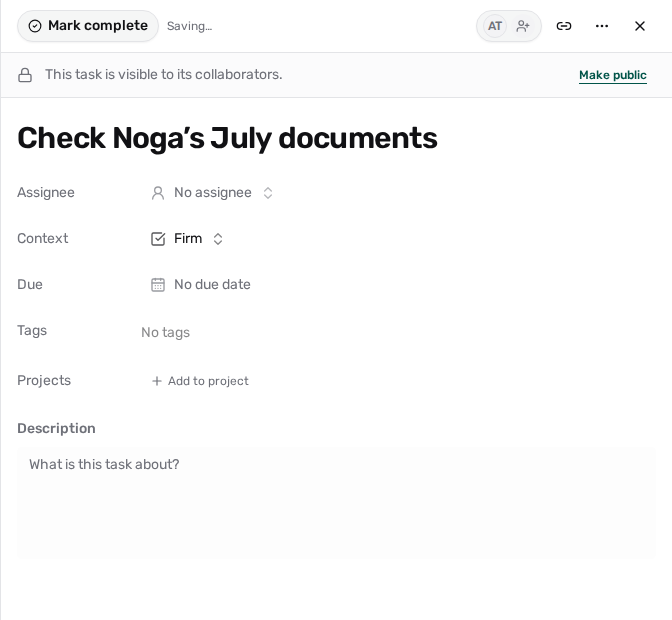 View full size ↗
Create a task
Link to section: Create a task- Open My Tasks, a project, or the client’s tasks area.
- Choose New task. On the Dashboard, choose + at the top of the tasks card.
- Give it a useful name, such as “Check Noga’s July documents”.
- Choose an Assignee and a Due date when needed.
- Add the client context, project, and description where relevant.
- Choose a Work type (such as Bookkeeping or Annual report) and a Priority when you know them.
- Wait for Saved before leaving the task.
A task started from My Tasks or the dashboard is assigned to you until you choose another assignee.
When you assign a task to someone else, they get an alert in the bell right away (a red number and a pop-up), and an email a minute or two later if their task emails are on. You keep seeing it in My Tasks, under Created by me.
To check that the news arrived, open the task and click the bell at its top (Who was notified). It lists who got an alert or a quiet update in the bell, and for each email whether it was sent, is about to be, or was not sent and why (for example, the recipient turned task emails off).
You can also create a task from Telegram through the office bot — without clock-in, using the same client access and assignment policy.
Task details save automatically. Closing a task does not undo changes that have already saved. If you see Could not save, keep the task open and resolve the problem before leaving.
Check Noga’s July documents
- Description
- Check the bank statement and missing receipts.
A specific name makes the next action clear.
Check Noga’s July documents
- Assignee
- Maya
- Due
- Tuesday
The task appears in Maya’s My Tasks. Followers can keep up with updates.
Check Noga’s July documents
- Result
- Documents checked
- Comment
- All July documents are ready for review.
Complete the task when the work is done. Check the completed filter to find it again.
The client is not in the system yet
Link to section: The client is not in the system yetYou do not need to leave the task to add it.
- In the Context field, search for the client’s name.
- When you see We could not find the client, choose Create new client.
- Fill in the name, the Tax ID (ID number / company number) and the entity type, then choose Create client.
The new client is selected on the task and you carry on from where you were. Fill in the rest later on the client page. If the tax ID already belongs to a client in the office, you are offered that client instead of creating a duplicate.
The task is waiting for the client
Link to section: The task is waiting for the clientWhen you cannot move on until the client sends material or answers, open the task and choose Waiting for client. The task is marked separately and does not count as overdue. When you hear back, choose Waiting for client again to put it back to work.
In the List view you can change the status without opening the task: click the status in the Status column and choose Open, Waiting for client or Done.
Time spent on a task
Link to section: Time spent on a taskInside the task, the Time spent row shows all the time recorded on it. Log time adds time the system did not see, such as a phone call. In the List view the same number appears in the Time spent column. How work time is measured.
Attach files to a task
Link to section: Attach files to a task- In the task, under Files, choose Drag files here or click to choose, or Attach files once the task has files. You can also drag files anywhere onto the task.
- Wait until each file finishes uploading and shows its size.
- Click a file to view it, or use its download button.
The line under the files says where they are kept: on a client’s task, in that client’s Files; on a general task, in the Office files. When you change the task’s client, files that are only on this task move with it. A file that is also on another record stays with that record’s client, and the task says where it is kept.
A task holds up to 20 files of up to 25 MB each, of types such as PDF, images, Office documents and emails. Files also count toward the office’s storage. Remove from task takes the file off the task only; it stays in the client’s or the office’s files.
Someone without access to the task’s client does not see its files and cannot attach files to that task.
Finish the task
Link to section: Finish the taskOpen the task and choose Mark complete. Check that it now shows as completed. If it disappears from the list, the current view may hide completed work.
Who sees it?
Link to section: Who sees it?Read the visibility message in the task. It explains whether the task is private, shared with collaborators or project members, or visible across the office.
If an owner turned on Owners and admins see all tasks, owners and admins see private tasks too.
Related: My Tasks, projects, comments and followers.